
Welcome! 👋
💵💵💵💵💵💵💵THIS is your dedicated place to try out ReadMe Refactored, and get a sense for all of the new features that come along with it.
One million dollars.
Welcome to your ReadMe Refactored playground! 
The ReadMe Refactored experience represents the future of ReadMe, and includes upgrades to almost every aspect of the product. We're so excited for you to start exploring this new experience, and hopefully making the decision to upgrade your production environment to Refactored soon. ✨
🔍 Explore Refactored
On the following Guides pages you'll find overviews on Refactored's core new features, including the Editing UI, our MDX-powered editor and Custom Components functionality, Bi-Directional Sync with GitHub, and Branches.
✍️ A Refactored Playground
This project is entirely yours to explore, add to, and experiment with! While the Guides pages are designed to be informational, they're also fully editable! Additionally, the API Reference section is intentionally left open so that you can try adding an API definition in ReadMe or via GitHub.
- Play Around with New Features: This is a great opportunity to get comfortable with the new Editing UI! Make updates in Edit mode, and toggle to View mode to see how they render. Try adding any of our 5 pre-built MDX components or create your own, either in this child project or at the Enterprise Group level.
- Set Up a Test API Reference: Add an API definition via file or upload from the Editing UI, or use our API Designer (the updated Manual Editor!) to create or edit an API definition. You can also connect your ReadMe project with GitHub via bi-directional sync and sync your API definition that way!
- Sync Bidirectionally One of the biggest updates to ReadMe Refactored is Bi-Directional Sync with GitHub, which allows you to make updates to your docs in ReadMe, GitHub, or both, and changes will always be synced bidirectionally. To get started, head to the Git Connection page in the Settings menu of your Editing UI.
- Collaborate via Branches Now you and your team can make changes to this project without impacting each other's work thanks to Branches! Create a branch off this project's main version or another version that you create, and try creating, editing, merging, and deleting branches.
💬 We're Here to Help!
While you're exploring, you can always feel free to reach out to your CSM, Solutions Architect, or our Support team via [email protected] if you have any questions or suggestions.
We're excited you're here! 💙
🎉 Ready to Migrate Your Production Environment?
Once you're ready to migrate your ReadMe Enterprise Group(s) and corresponding child project(s) to ReadMe Refactored, reach out to your CSM and Solutions Architect to let them know! They'll walk you through all of the steps and schedule a date when our team will take care of the entire migration process. 🚀

hello world
hello world
hello world
hello world
hello world
hello world
hello world
hello world
hello world
A link here
hello world
Pod restart strategy
Pod restart strategy
When using immediate mode, you can optionally enable one-by-one pod restart to minimize disruption during resource adjustments. This is useful for workloads without Pod Disruption Budgets or with aggressive rollout strategies that might cause multiple pods to restart simultaneously.
How it works
When enabled, the one-by-one restart changes how immediate mode applies recommendations:
- Sequential processing: The system applies the recommendation to a single pod at a time
- Health verification: Waits for each pod to become healthy and ready before proceeding
- Gradual rollout: Moves to the next pod only after the previous one is successfully running
- Automatic recovery: If a pod fails to start, the rollout pauses until the workload recovers
This ensures gradual rollouts and maintains service availability throughout the resource adjustment process.
Enabling one-by-one restart
You can enable this feature through the Cast AI console:
- Navigate to Workload Autoscaler → Scaling policies
- Select or create a policy with When to apply changes set to immediately
- Under Advanced settings, locate Rollout strategy
- Check the Restart pods one by one option
- Save the policy
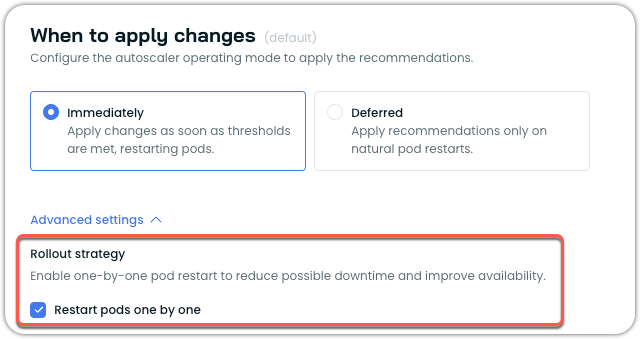
You can also configure this setting using annotations:
apiVersion: apps/v1
kind: Deployment
metadata:
  name: my-app
  annotations:
    workloads.cast.ai/configuration: |
      vertical:
        optimization: on
        applyType: immediate
      rolloutBehavior:
        type: NoDisruption
        preferOneByOne: true
spec:
  # deployment spec...
For more information on configuring workloads via annotations, see Annotations reference.
NoteThe one-by-one restart feature is currently opt-in. Based on customer feedback and continued improvements, it may become the default behavior in system policies in future releases.
Supported workload types
The one-by-one restart feature works with the following workload types:
- Deployments
- StatefulSets
- ReplicaSets
- ArgoCD Rollouts
Not supported: Bare pods, CronJobs, Jobs, and other non-replicated workloads.
Version requirements
To use the one-by-one restart feature, ensure you have the following minimum versions:
| Component | Minimum Version |
|---|---|
| castai-workload-autoscaler | v0.57.0 |
| Helm chart | 0.1.127 |
Considerations and limitations
When using one-by-one restart, be aware of these considerations:
Rollout duration: For workloads with many replicas (100+), the gradual rollout process may take longer depending on pod startup time. This is expected behavior as each pod must become healthy before the next one is processed.
Mid-rollout recommendations: If a new recommendation is generated while a rollout is in progress, it takes precedence. For example, if half the pods have been updated with an immediate recommendation and a deferred recommendation is then issued, the rollout will stop. The new deferred recommendation will be applied to the remaining pods only during their natural restarts.
Failed pod scenarios: If a pod fails to start during the rollout (for example, due to image pull errors or application crashes), the entire rollout pauses until the workload recovers. This prevents further disruption but requires manual intervention to resolve the underlying issue.
OOM kills and surge handling: When enabled, OOM kill responses and surge-triggered adjustments also follow the one-by-one pattern, which may delay the system's response to these events.
hello world
hello world
hello world
Updated 2 months ago